Bottom
Previous
Contents
Chapter 6 - Using Setup Files.
A setup file is a file containing values for some or all of the menu settable parameters of this software. On loading a setup file, the default and current values of each parameter represented in the file become set to the values in it. This feature can be used:
- To quickly set all parameters to a set of previously defined values.
- To ensure consistency of run and instrument parameters on different occasions when gathering charge decay data.
- To recall parameters for analysis.
- To correctly set the serial port and drive lists at startup.
In addition, one of the parameters featured in a setup file is the name of the next setup file. When this name is defined (i.e. has been given at least one character), and the setup file is loaded, then the next setup file is also loaded automatically, this operation being repeated for up to 10 setup files or until no name is defined for the next set up. If the JCI155 Charge Decay Test Unit is in computer controlled mode, then at the end of each charge decay run, a new run is executed automatically, using parameters set by the next setup file. This process allows sequences of measurements to be made with e.g. gradually increasing corona voltage, to simulate real situations within the capability of the instrument.
The software takes its initial parameter values from a particular setup file at start up. This file may be stored with any desired parameters to give the user customized parameter values at start up. Setup files may be stored conveniently along with the Charge Decay Data files generated using the setup file, so that it is convenient and easy to repeat runs and analyse them with the original parameters. They may also be stored in a special sub-directory set aside for them, and classified by using sub-directories within that sub-directory.
Saving current parameters in a setup file along with Charge Decay Data
It is convenient to store the current setup along with Charge Decay Data where numerous Charge Decay Runs have taken place using the same run parameters (and instrument parameters if in computer controlled mode). The following example leads you through the actions required to save your current setup along with the Charge Decay Data you are generating. After having performed a few Charge Decay runs:
- Access the File / Directory picker from the Main menu selection 2. It will appear similar to figure 6.1 below. The drive:\Directories item displayed near top, left will indicate the drive and directory you have been using to store your charge decay data, and their file names will appear in the data files panel.
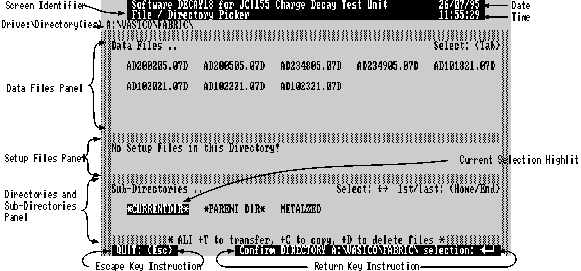
Figure 6.1 - Data File / Directory Picker
- Select and confirm *CURRENTDIR* in figure 6.1 above, to get to the Drive / Directory Selection menu (figure 6.2 below).
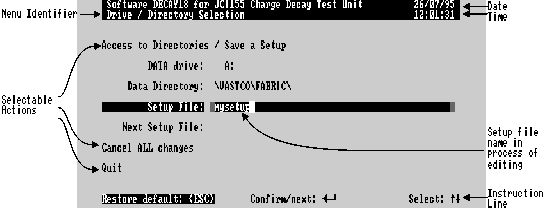
Figure 6.2 - Drive / Directory Selection Menu
- Select and edit the Setup File item to provide a suitable name of up to 1 - 8 Characters (N.B. avoid the valid character '\'), as shown in figure 6.2 above.
- Confirm the setup file name, then select and confirm Save a Setup (1st Selection), to proceed to the SAVE a setup .. Menu (figure 6.3 below).
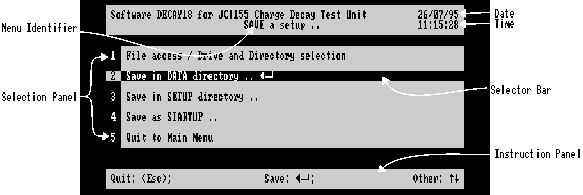
Figure 6.3 - Save a setup .. (Menu)
- Select and confirm Save in DATA Directory .. as shown in figure 6.3 above. The setup file will be saved in the current data directory, and after a short while the Data File / Directory picker will reappear, similar to figure 6.4 below:
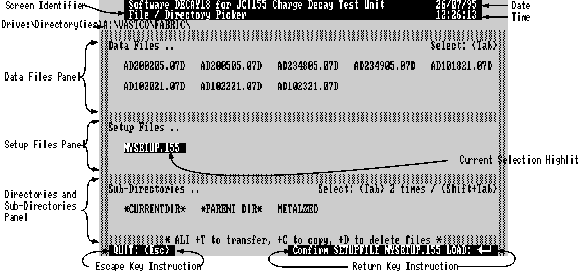
Figure 6.4 - Data File / Directory Picker with setup file
- Note that the setup file appears in the setup file panel with the name given to it in the Drive / Directory Menu (figure 6.2 above) and the extension ".155", indicating that it is a setup file for the software for a JCI155 instrument.
- Follow the directions in the setup file panel top right to select the setup file as shown in figure 6.4 above. Confirming this will load the setup file, (as indicated in return key instruction at bottom right) causing default and current values of all parameters (except sample identity) to become the same as the current values when the setup file was saved.
Using the setup file
- Whenever the setup file has been loaded, Charge Decay Runs and Analysis can be performed with the desired parameters:
- Run parameters and instrument parameters will conform to the setup values until deliberately edited. Editing will affect the current values only, not the default values, so that the values in the setup file can be restored by restoring defaults. This may be done for individual parameters or for all the parameters in a menu: please see the chapter 9 - Menus (general) - Restoring Defaults ..
- Analysis parameters and Graph parameters will have their default values affected by the data analysed and graphed. To continue using the values in the setup file, choose the first selection of the Analysis or Graph preparation menus, and avoid editing the current values presented in the following parameter menu.
If it is necessary to change a current value to ensure e.g. that a graph displays correctly, try the second selection of the appropriate preparation menu, which uses the default values affected by the data for the best display, without changing the current values. If a current value must be changed, then the setup value can easily be restored by reloading the setup file from the Data File / Directory picker as described above.
- If, while using a setup file saved in the data directory to control Charge Decay runs, a floppy disc becomes full with Charge Decay Data, it is a good idea to ensure that the setup is correctly repeated on the next floppy disc. To do this:
- Before changing the disc, ensure the setup is correct by reloading it from the Data File / Directory picker as described above.
- Change the disc.
- Immediately save the setup on the new disc as described above.
Saving current parameters in a setup file along with the program
It is frequently convenient to save setup files along with the program, since
- they are then available for use with the program, even when discs with earlier permanently stored Charge Decay Data and associated setup file(s) are not available.
- they may then be used in conjunction with a suitable batch file to set parameters at program start.
However, there may eventually be space limitations, requiring these files to be periodically transferred to floppies! To avoid cluttering the program directory, such setup files are saved in a sub-directory "SETUP" within the program directory. To further categorize the setup files, they may be stored in sub-directories within sub-directory "SETUP". The following example leads
you through the actions required to save your current setup in this way:
- Select and confirm Main menu selection 4: Port / Calendar / Setup Directory .. This leads to a Calendar and Serial Port Setting Menu that has Setup Files .. as its second selection.
- Select and confirm Setup Files .. This will lead you to the Setup File / Directory picker, figure 6.5 below. This resembles the Data File / Directory picker described above, except that:
- The least available Drive:\Directories available is the "SETUP" sub-directory of the program directory, typically C:\D18\SETUP\ as shown in the figure 6.5 below. Note there is no *PARENT DIR* offered in the sub-directories panel at this level.
- There is no Data File Panel.
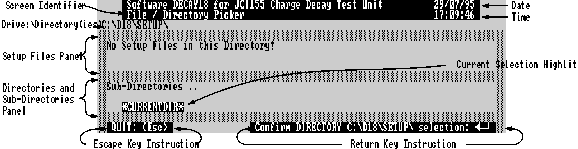
Figure 6.5 - Setup File / Directory Picker (compressed vertically)
- Select and confirm *CURRENTDIR* in figure 6.5 above, to get to the Drive / Directory Selection menu (figure 6.6 below).
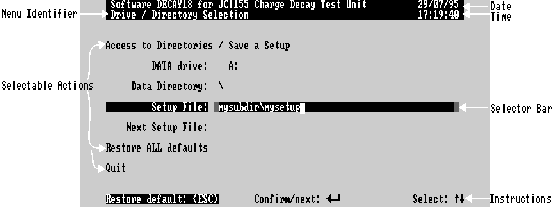
Figure 6.5 - Entering new setup file name.
- Using a suitable name, perhaps preceded by subdirectories, enter this name at Setup File as in figure 6.5 above.
- Select and Confirm Save a Setup (Top selection) to enter the Save a Setup .. menu shown below (figure 6.6)
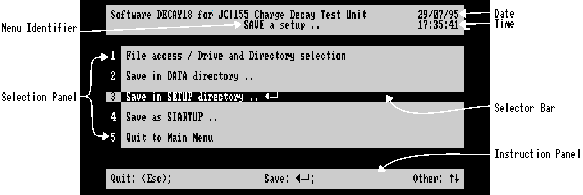
Figure 6.6 - Saving a setup file in SETUP sub-directory.
- Select and confirm Save in SETUP as shown in figure 6.6. above. If the setup file is successfully saved you will be returned to the setup File / Directory picker, with the newly saved file selected (highlit) as shown in figure 6.7 below:
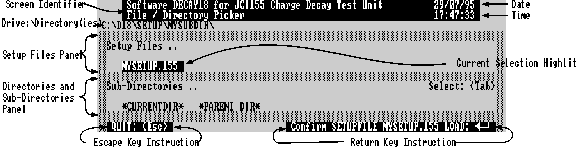
Figure 6.7 - Setup File / Directory Picker after saving.
- Note that the drive:\directory\ information at top left reflects the directory information entered in the setup file name in the Drive / Directory menu.
- When the setup file is selected (highlit) as in the figure 6.7 above, the setup information held in the file may be loaded as required by confirming as in the instruction at bottom right.
Saving current parameters for program start up
Referring to figures 6.3, 6.6 above you can see that selection 4 allows a setup file to be Saved as startup. This causes the setup to be saved in a directory "startup" in the same directory as the program, under the name "JCISTART.155", and means that the setup file is loaded whenever the program is started, and in this way can automatically provide the user with a customised set of parameters. In fact one item in the setup file, the serial port setting, is only read at this time, so that imported set up files will not disturb it.
It is also possible to have any setup file in the setup sub-directory or in any of its sub-directories loaded automatically at startup by mentioning its sub-directories and name in the command line that invokes the program, which is normally a line in a batch file. By way of example, here is a line in a batch file to load the setup file in the examples above at program start up:
- C:\D18\DECAY18 /Smysubdir\mysetup
Note that the /S is required to introduce a setup file name, with directories if required, on the command line. You can write several different batch files, each of which must have its own name, and start up the program with a required setup by using the appropriate name to invoke the appropriate batch file.
Making and using a sequence of setups
We here lead you through an example of making and using a simple sequence of setups. In this example, 3 charge decay runs are to be made with different values of corona voltage 5kV, 7kV and 9kV in ascending order, no other parameters changing.
N.B. this requires a JCI155 Charge Decay Test Unit capable of being computer controlled.
- Ensure the JCI155 is in computer controlled mode.
- Select and confirm on main menu selection 1
Run under computer control
to access Instrument Parameters menu.
Note that sample identities are best nulled, since they are overridden by the sample identity entered.
- Edit items as follows
- the Corona Voltage to 5000
- the Sample Identity to "", i.e. delete it all
- Select Quit and Escape to Main Menu.
- Select and confirm Access to data directories (selection 2), leading to Data File / Directory picker
- Select and confirm *CURRENTDIR*, leading to Drive /Directory Selection
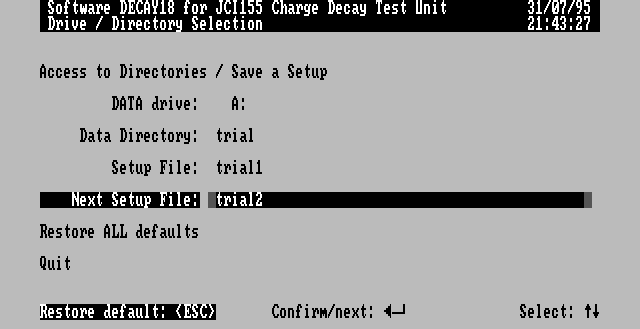
Figure 6.8 - Creating a sequence of setups
- Edit items as follows (see figure 6.8 above):
- Data Directory to read "trial"
- Setup File to read "trial1"
- Next setup file to read "trial2"
- Select and confirm Save a Setup (top selection) to proceed to the Save a setup .. menu.
- Select and confirm Save in DATA directory. This will return you to the Data File / Directory Picker. The Drive:\Directory will show the data directory "TRIAL", and the Setup files panel will show setup file "TRIAL1.155" created above.
- Select *CURRENTDIR* and
 to Quit to the main menu.
- Repeat the above sequence, editing:
- Corona Voltage in Instrument Parameters Menu to 7000
- Setup File to "trial2"
- Next Setup File to "trial3".
- Repeat the above sequence once more, editing:
- Corona Voltage in Instrument Parameters Menu to 9000
- Setup File to "trial3"
- Next Setup File to "", i.e. delete the name completely, so that the sequence stops after trial3.
- Figure 6.9 below shows the Data File / Directory Picker after trial3 has been saved.
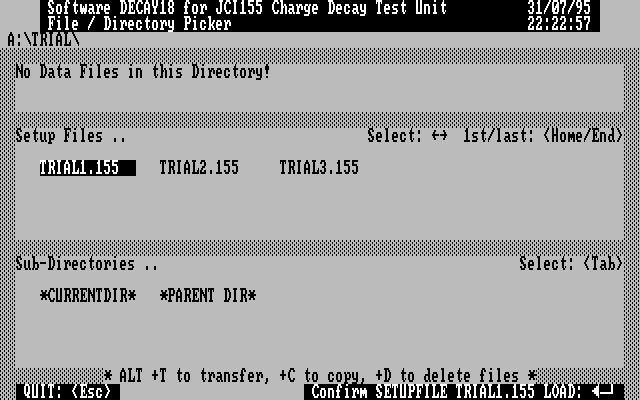
Figure 6.9 - The complete sequence of setups has been saved in sub-directory "trial".
- While in the Data File / Directory Picker, select and confirm TRIAL1.155 to load that setup file, as shown in the figure 6.9 above. You will be returned to the main menu as shown in figure 6.10 below.
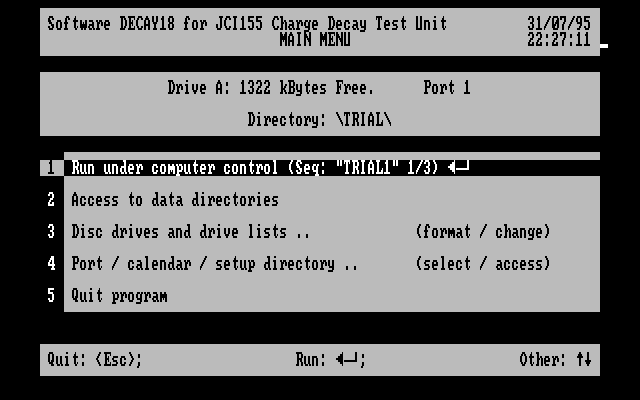
Figure 6.10 - Main Menu at start of a setup sequence
- Note the information on Selection 1 of the Main Menu, showing the name of the first setup and the current position in the sequence.
- Accept and confirm this selection as shown in figure 6.10 above, to proceed to the Run Parameters Menu.
- Accept and confir
m the Proceed: selection of the Run Parameters Menu, to proceed to the Instrument Parameters Menu.
- Edit the sample name as required e.g. "Sequence trial". This sample name will be retai
ned and used for each of the runs.
- Select and confirm Run. The computer will now make the instrument perform three Charge Decay Runs, using the setup files in sequence. Evidence of the sequence will be found when analysing the runs, which will all have the same sample identity, and appropriately differing Corona Voltages. Time and date of run can be used to confirm the sequence order.
Next
Top