
This chapter describes the use of the hierarchical directories provided by the MS-DOS® filing system to facilitate:
It is prescribed reading for a users of the software who wish to store, retrieve, backup and distribute non trivial numbers of decay data files.
The large number of decay data files that can be stored on even a single floppy disc, let alone fixed (hard) discs, causes difficulties in location of a given file. The MS-DOS® filing system provides hierarchical directories which hold small groups of decay data files and / or sub-directories. The names given to the directories and sub directories can be meaningful to the user, and thereby facilitate retrieval of the decay data. In the fictitious example shown below, a single disc has been used to gather decay data for a range of materials - paper, plastic, fabric - each of which has one or more subdivisions such as - glazed, metallized, coated, ion-bombarded, wire-meshed &c
Figure 5.1 Datafiles and Directories
To find a file, e.g. AD094001.07D which contains decay data for paper, coated and metallized, the disc may be inserted in a floppy drive, e.g. drive A:, and on selection of Access to Data Directories from the main menu, there will be a choice of sub-directories:
- *CURRENT*, PAPER, PLASTIC, FABRIC -
where *current* is the directory we are now "in", i.e. the 'root' directory A:\
On selecting "paper" sub-directory, there will be a choice of files:
- AD0800001.07D, AD081001.07D, AD082001.07D -
and subdirectories
- *PARENT*, *CURRENT*, COATED -
where *parent* is the directory we "came from", i.e. root directory A:\ and *current* is A:\PAPER
On selecting "coated" subdirectory there will be a choice of subdirectories:
- *PARENT*, *CURRENT*, GLAZED, METALIZD -
On selecting "metalizd", there will be a choice of files:
- AD093001.07D, AD094001.07D -
either of which may now be selected and loaded.
The above example displays some of the advantages and limitations of using the MS-DOS® file system:
Also, note that the maximum "depth" of a sub-directory is 7; in the diagram figure 5.1 the maximum depth is 3.
As an exercise, we go through the actions required to produce a directory "Main", with sub-directories "Subsid1", "Subsid2", and store decay data in each of the two subdirectories. To simplify matters, insert a formatted, empty floppy disc in drive A: of the computer, and from the main menu make selection 2 Access to data directories. The file / directory picker will appear. Note that:
 instruction (bottom right and highlit) offers to confirm DIRECTORY A:\ selection
Confirm the above selection of directory A:\ and you will enter the drive / directory selection menu shown below in figure 5.3.
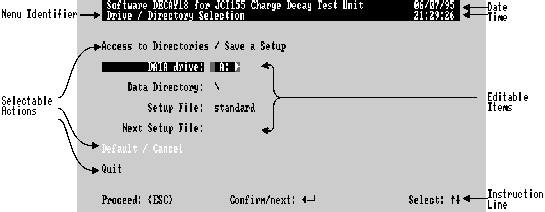
Figure 5.3 Drive / Directory Menu
Follow the instructions (bottom right) to select Data Directory. An edit cursor will appear to the right of the legend: type in the required directory names, each up to 8 characters, separated by a backslash, no spaces, e.g. "Main\subsid1". Follow the instruction (bottom centre) to confirm the new data directory, then select and confirm Access to Directories.
Skip the next menu that appears (SAVE a setup ..) by selecting and confirming item 1, File access/ Drive and Directory selection. After a short wait while the data disc is checked and your new directories are constructed, you will be returned to the File / directory picker. Note that:
Now quit the file / directory picker (instruction at bottom left) and do a decay data run as described in Chapter 2 (or 3). At the point where the analysis preparation menu appears, you may quit to the main menu, or continue the analysis. On finally returning to the main menu, the data can be reviewed as in Chapter 4. At the start of the review the file / directory picker will appear. Note that
At this point you might confirm to perform the analysis of the decay data, or quit to perform more decay data runs to be saved in this directory. To produce another sub-directory "subsid2" in the main directory, return to the file / directory picker, select *CURRENTDIR* to move to the drive directory menu of figure 5.3 above. Edit the directory item in this menu to read \main\subsid2 (recall that upper / lower case is not significant). Then quit the drive / directory menu: subsequent decay data runs will be saved in the new directory.
Now that we have more than one subdirectory, you can move from one to another when accessing data files and directories. In the file / directory picker, selecting *PARENT DIR* from the sub-directories panel will move the current directory to A:\MAIN\ as shown at top left, and then either SUBDIR1 or SUBDIR2 can be selected from the sub-directory panel. Then QUIT the file / directory picker: subsequent decay data runs will be saved in the new directory.
It is extremely undesirable to store Charge Decay data files (or indeed any other data files) in the root directory of a hard (fixed, internal) disc, i.e. the directory" \" in (typically) drive "C:". If you attempt to do this, you will find that a default directory "JCI155v4" is created if it does not already exist, and that this is u sed instead of the root.