This chapter deals with the use of Floppy and Fixed (hard, internal) disc drives. Read this to find out the most efficient way of using your computer disc drives to record and permanently store charge decay data.
Early versions of the IBM PC and compatibles were supplied with one or two floppy disc drives, while current machines are normally supplied with at least one Fixed and one Floppy Drive.
The true division between the types of drive lies in the nature of the "media" - is it fixed (internal) or removable (external)? If the media is fixed, then its total capacity is limited: it is ideal for the storage of software which is required to be instantly available, such as your JCI155v4 Decay18 Charge Decay Software, your word processor, your spreadsheet program &c. It is not a good idea to use it for the permanent storage of data such as your Charge Decay Data Files, your word processed documents, and your spreadsheet data &c, since it soon fills up.
If the media is removable, then the limitation on total capacity is effectively removed. External media are ideal for permanent storage of data that is not to be very frequently retrieved, such as your Charge Decay Data Files, your word processed documents, and your spreadsheet data &c.
It is however generally true that removable media operate much more slowly than fixed media, and also the individual capacity of the most common removable media (floppy discs) is somewhat limited. Therefore a common scenario is that Charge Decay data are recorded directly on to a fixed disc, allowing rapid instant analysis, or the recording of large amounts of data from repeated runs under computer control without manual intervention to supply fresh floppy discs. After the Charge Decay data is collected, it must eventually be transferred to floppy discs for permanent storage.
Your JCI155v4 Decay18 Charge Decay software offers the following features to optimise the use of your discs drives:
The principle is to set the drive lists with the drive letters in the order you would like them to be used. For the purpose of the examples below, a computer is assumed to be provided with two floppy drives A:, B:, two hard drives or drive partitions C: and D:, and an electronic Ram drive E:. If your machine lacks one or more of these drives, just leave it out of the drive lists. Recall that the Ram drive E: will lose all data stored in it if the power supply fails!
The drive lists are accessed by selection 3 of the main menu:
Disc drives and drive lists .. (format / change).
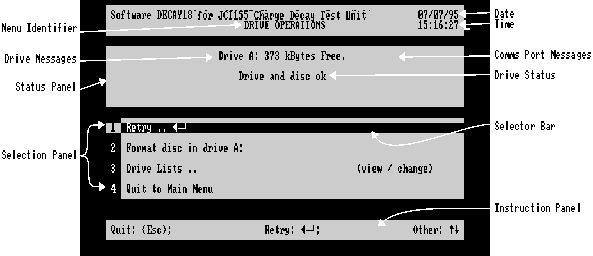
This leads to the Drive Operations Menu, shown below:
Figure 8.1 Drive Operations Menu
Make selection 3: Select Drive Lists .. (View / Change): this will lead to the Drive Lists Menu Figure 8.2 below:
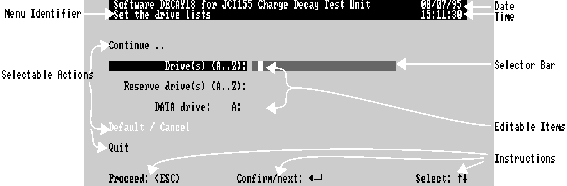
Figure 8.2 - Drive List Menu
Either drive list can accept up to 26 consecutive different alphabetical characters denoting drives, in the order they are intended to be accessed. Just select the drive list and type at the cursor to enter them. For more information on editing such items see Chapter 9. Don't use the same letter twice in either list or in both lists!
Type "CD" in the Drive list Drives (A..Z) to obtain rapid filing and reloading of data to speed analysis. In manual mode drive D must be manually selected when C fills up; no data will be lost. In computer mode, D will be selected automatically. Do not use E (ram drive) because of the risk of losing all data if power fails.
Type "AB" in the Reserve Drive list Reserve Drives (A..Z). In manual mode, these must be manually selected in the unlikely event of C and D being full, but they will automatically be selected when both C and D are full in computer mode. Operation will slow down somewhat. At the end of the Decay Data collection Session, or when C and D are full, the Charge Decay data on these discs can be transferred or copied to floppy discs for permanent storage, as described in File Management below.
Select Data Drive: and use  ,
,  to set the required data drive from the lists
Select Quit then Press  to return to the main menu.
Type "AB" in the Drive list Drives (A..Z) to obtain data that is permanently stored. In manual mode drive B may be manually selected when A fills up; no data will be lost. In computer mode, B will be selected automatically, allowing A to be replaced manually, while B fills up and vice versa. This requires minimum attendance to an otherwise unattended Decay Data Run.
Type "CDE" in the Reserve Drive list Reserve Drives (A..Z). In manual mode, these must be manually selected in the event that the supply of blank floppy discs runs out, but they will automatically be selected in the sequence given when both A and B are full in computer mode. This allows a long unattended run to carry on saving data, e.g. overnight. Replacing either A or B floppy discs with blank d iscs will cause further data to be stored in said floppies, until they are both ful l. In the order shown, E will only be used as a last resort! At the end of the Decay Data collection Session, any Charge Decay data on C, D or E can be transferred or copied to floppy discs for permanent storage, as described in File Management below.
Select Data Drive: and use  ,
,  to set the required data drive from the lists.
Select Quit then Press  to return to the main menu.
When a decay data file cannot be stored on a floppy disc which has filled up in manual mode, you will be presented with the Drive Operations Menu, Figure 8.1 above. (The menu's name will be replaced by the sample description to remind you what was to be filed). Read the status panel messages, which usually end with the instruction to:
Please replace with formatted disc or select another drive.
The normal response is to change the disc for a new one. The new disc may be formatted if required, but recall that formatting will destroy any information on the disc, so only format brand new discs. To format a new disc, be sure to remove the old one, then select and confirm selection 2:
Format disc in drive A: (or whichever drive was in use)
Now follow carefully the instructions given on screen by your computer's normal floppy disc formatting utility. When the formatting is finished, your Charge Decay data will be saved at once, and you will be offered the Analysis Preparation menu as if nothing had happened.
If a new disc is not available, then it is reasonable to use the fixed disc (if available) in order to carry on the work. Choose item 3:
Drive Lists .. (View / Change)
to proceed to the Drive List menu (figure 8.2 above), select Data Drive: and use  ,
,  to set the required data drive from the lists. Confirm this selection, then select and confirm Continue .., and the Charge Decay data will be saved at once, and you will be offered the Analysis Preparation menu as if nothing had happened.
At the end of a session of Charge Decay recording, there will often be Charge Decay data files on fixed (internal, hard) discs which need to be transferred to floppy (removable, external) discs for permanent storage). This software offers two options for transfer:
Two further related options are:
For the purposes of this example, and in order to give you some practice at file management, we will:
Show that Decay Data files can't be deleted until they have been copied!
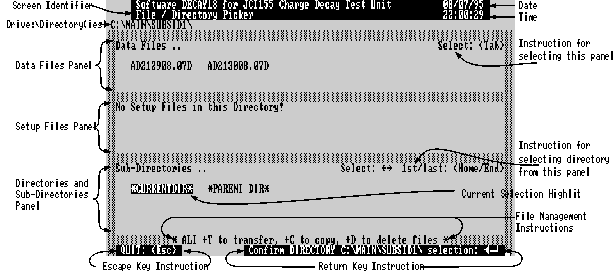
Figure 8.3 File / Directory Picker at step 2
 +
+ where the appropriate key is the first letter of the instruction.
 +
+ . You will then enter the Delete utility which presents you with a message informing you of the file management option selected, and inviting you to confirm
  or abandon
  . Confirm the deletion, and the utility will perform the deletion, but only on files that have been copied! The screen will then appear as below:
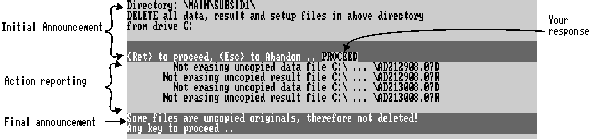
Figure 8.4 File Management Utility - Reporting attempt to delete uncopied files.
Copy the files in C:\Main\subsid1\ to drive A:
 +
+ to Copy it. This time you will get the screen shown below. After you have responded to the initial announcement by pressing
  , the screen wil
l vanish on satisfactory completion to be replaced by the file / directory picker.
, the screen wil
l vanish on satisfactory completion to be replaced by the file / directory picker.

Figure 8.5 File Management Utility - Copying in progress.
Demonstrate the speed of loading a file for analysis from the fixed drive
Demonstrate deletion of files copied to floppy (external) disc.
 +
+ .
.
Demonstrate the speed of loading a file for analysis from the floppy drive.
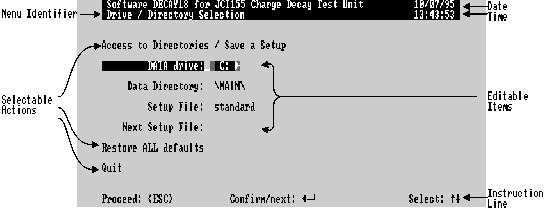
Figure 8.6 Drive / Directory Selection
 ,
,  or
or  to change Data Drive to A: (Reserve)
Demonstrate moving files to a new directory.
 +
+ to execute the file Move. The screen shown below will appear, showing the progress of the move. After you have responded to the initial announcement by pressing
  , the screen will vanish on satisfactory completion to be replaced by the file / directory picker.

Figure 8.7 - File Management Utility, Move in progress .
Demonstrate transfer of files to a floppy disc.
The two operations copy and delete are combined by transfer, which unlike move, doesn't change the directory, but does change the drive.
 +
+ to Transfer the files shown to drive A:. The screen shown below will appear, showing the progress of the transfer. After you have responded to the initial announcement by pressing
  , the screen will show the progress of the transfer as a series of copy / erase actions, then will vanish on satisfactory completion to be replaced by the file / directory picker.

Figure 8.8 - File Management, transf er in progress.
You will be advised by the File Management utility if a copy operation is not completed due to a destination disc filling up. Press  to return to the file / directory viewer, and you will find the File Management instructions are changed to offer
  +
+ to Continue copying (for which you should insert a newly formatted disc),
  +
+ (to Reset copy flags), i.e. abandon the partial copy, so that copying can recommence from the start. If you quit the file / directory picker, without completing or resetting a copy, you will be presented with the same options when you return to the same directory.